Digital Declutter Checklist for Your Home Office
Digital Declutter Checklist for Your Home Office
Home offices are supposed to be productive sanctuaries, right? But let’s be honest, yours probably feels more like a chaotic black hole of digital clutter. Between messy desktops, forgotten subscriptions, and 10 versions of the same file, it’s easy to lose track of what’s important. That’s where this digital declutter checklist comes in. You don’t need to be a Marie Kondo-level organization expert to whip your workspace into shape. You just need a solid strategy and a little time.
Digital clutter is sneaky. Unlike physical clutter, you don’t have to step over it or worry about stubbing your toe on it. But it’s there, quietly clogging your productivity and making simple tasks feel harder than they should. Ever stared at a screen full of folders, unsure where to click? Or wasted time searching for an email you know you received last week? You’re not alone. These small frustrations are signs it’s time for a reset.
So if your email inbox looks more like a landfill and your computer’s storage is constantly yelling at you, don’t worry,you’re not alone. We’ll tackle everything step by step (and yes, emojis are involved). Get ready to reclaim your productivity, clear your head, and finally create a digital space that works for you. Let’s get started.
—
Why This Matters

Picture this: you wake up motivated to tackle the day. Coffee’s brewed, you’re ready to check off your to-do list, and then,bam,you can’t find the file you need. After 20 minutes of searching, you realize it’s buried in a folder labeled “Stuff.” Now your focus is shot, and frustration sets in. Sound familiar?
I’ve been there. A cluttered digital workspace doesn’t just waste time. It drains energy, creates unnecessary stress, and makes productivity feel like a distant dream. In fact, studies show the average worker spends 25 minutes a day searching for files. Multiply that by a week,or a year,and the lost time is staggering.
Your home office should be your productivity HQ, not a source of chaos. A clean, organized digital space doesn’t just help you work faster. It also clears your mental clutter. Trust me, once I started decluttering my tech setup, my focus and creativity skyrocketed. I even stopped using sticky notes for reminders because I stopped losing track of things. So let’s break this mess down and fix it.
—
The Digital Declutter Checklist: 10 Steps to a Cleaner Workspace

Ready to dive in? Here’s your ultimate digital declutter checklist to get your home office back on track.
1. Declutter Your Desktop
Your desktop is prime real estate, so treat it like one. A cluttered desktop isn’t just an eyesore,it can slow down your computer’s performance. Start by deleting random screenshots, unused shortcuts, and files you haven’t touched in years. Create a folder system that makes sense to you. For example, instead of “Misc,” use specific labels like “Work Reports” or “Design Assets.”
Pro tip: As you sort your files, ask yourself, “Do I really need this?” If the answer is no, send it to the recycling bin. For files you rarely access but need to keep, move them to an external hard drive or cloud storage.
—
2. Clean Up Your Email Inbox
Email clutter is the silent productivity killer. If your inbox has thousands of unread messages, chances are most of them are junk or outdated. Use the search function to find old newsletters, promotions, or irrelevant emails, and delete them. Then, unsubscribe from email lists you don’t care about.
Set aside some time each day to read and delete emails. I used to dread this task until I committed to “Inbox Zero Fridays.” By consistently tackling my inbox at the end of the week, I finally broke free from email chaos. Trust me, it’s life-changing.
—
3. Organize Your Cloud Storage
Whether you use Google Drive, Dropbox, or iCloud, these storage solutions often become dumping grounds for random files. Go through your cloud storage and start categorizing everything. Create folders that mimic the structure of your desktop organization.
For example, in Google Drive, I found I had three folders named “Stuff to Sort.” Ridiculous, right? Once I labeled things properly, I could actually find what I needed. Delete duplicates and move rarely used files to an archive folder.
—
4. Streamline Your Apps and Software
Be honest: How many apps on your computer or phone do you actually use? Go through and delete anything you installed “just to try” but never opened again. For software subscriptions, check your monthly or annual charges and cancel anything you’re not actively using.
Once trimmed down, organize your apps. On your phone, move frequently used apps to the front screen and group similar ones together,for example, “Productivity” or “Social Media.” On your computer, keep your taskbar simple with only essential programs.
—
5. Tackle Your Browser Tabs
If you’re the type who always has 30 tabs open, this one’s for you. Start by closing irrelevant tabs. Then bookmark pages you want to revisit later. Create bookmark folders for categories like “Work Resources” or “Recipes.”
Also, clear your browser history and cache,it’ll improve your browser speed and free up memory. Consider using a tab manager extension to keep things neat, especially if you tend to multitask. Trust me, fewer tabs = less chaos.
—
6. Audit Your Passwords
Password management is non-negotiable for any organized digital life. Go through your saved passwords and delete accounts you no longer use. Use a password manager like LastPass or 1Password to store and generate secure passwords.
I learned this lesson the hard way after spending an entire afternoon resetting forgotten passwords. Save yourself the hassle by getting organized now. Bonus tip: Enable two-factor authentication wherever possible for extra security.
—
7. Check Your Digital Subscriptions
Streaming services, online courses, memberships… these things add up fast. Review your subscription list to see what you’re actually using. Cancel anything that’s not giving you value.
For example, I once found I was paying for three separate design tools, all of which offered the same functionality. After canceling two, I freed up $20 a month. Bonus: Keep a running list of active subscriptions in a spreadsheet so you don’t lose track.
—
8. Declutter Your Smartphone
Your phone deserves a little digital TLC too. Start with your photo gallery,delete blurry photos, duplicates, and random screenshots you no longer need. Then, organize your apps into folders and delete the ones you don’t use.
I recently realized I had over 2,000 photos on my phone, most of which were pointless. I spent an afternoon organizing them into albums and deleting the rest. Now I don’t have to scroll endlessly to find the one picture I need. It’s a big win.
—
9. Sort Through Digital Notes
Do you have five different apps for notes or reminders, but can’t find the shopping list you made last week? It’s time to consolidate. Choose one notes app and transfer everything there, organizing by topic or project. Delete old notes you no longer need.
Personally, I use Evernote for work and Apple Notes for personal lists. It keeps things tidy and easy to manage. Just make sure your method feels natural to you.
—
10. Archive or Delete Old Projects
If you’re holding on to a project from 2012 “just in case,” it’s time to let go. Keep only the files you truly need for reference. Archive the rest onto an external hard drive or cloud storage, or delete them entirely.
I used to hoard old work projects, thinking I’d need them someday. Spoiler: I didn’t. Freeing up that space not only decluttered my computer but also gave me peace of mind.
—
Pro Tips or Common Mistakes
- Pro Tip: Start With What Bothers You Most
Focus on the area that’s stressing you out the most. Feeling overwhelmed by your inbox? Start there. Tackling your worst pain points first makes the rest feel easier.
- Mistake #1: Forgetting To Back Up Important Files
Before any major decluttering session, back up your data. Accidents can happen, and it’s better to be safe than sorry.
- Pro Tip: Schedule Monthly Declutter Sessions
Set a recurring date every month to clean up new clutter. Staying consistent will save you from having to start from scratch later.
- Mistake #2: Ignoring Your Smartphone
People often forget their phones are part of their digital life. Don’t let your phone become a digital junk drawer.
—
Products That Actually Help
A few things that make a real difference here:
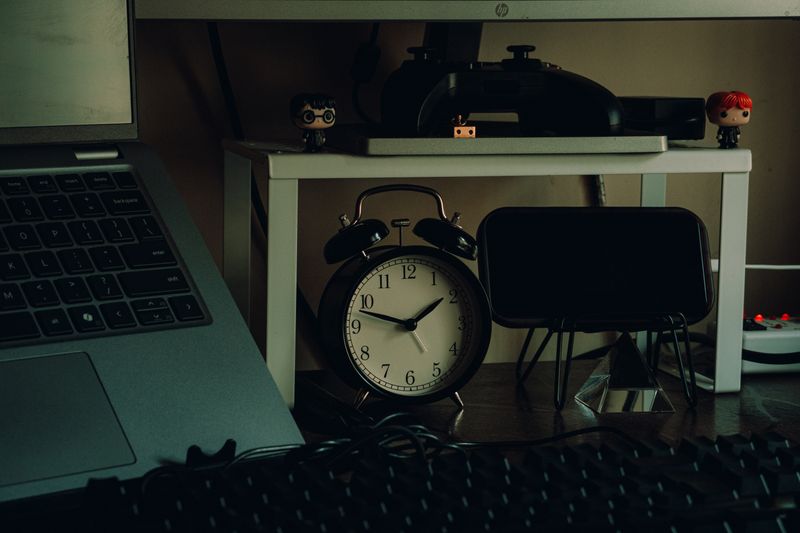
- Cable Management Box – This box hides the power strip and cord chaos under the desk.
- Desk Organizer Tray – A tray keeps pens and sticky notes from drifting across the whole desk.
- Monitor Stand With Storage – Raising the monitor frees up a drawer’s worth of desk space underneath.
Note: links above go to Amazon search results for these products.
Quick Summary / TL;DR
- Declutter your desktop, email inbox, and cloud storage for a cleaner workspace.
- Delete unused apps, tabs, photos, and subscriptions to streamline your digital life.
- Use tools like password managers and bookmark folders for better organization.
- Avoid over-complicating your system,simple is better.
- Regular maintenance (monthly or weekly) keeps the clutter from creeping back.
By following this digital declutter checklist, you’ll minimize distractions, save time, and create a space that helps you thrive. It’s not about perfection,it’s about progress. Start with one step today, and watch how much clarity and productivity you gain.
—