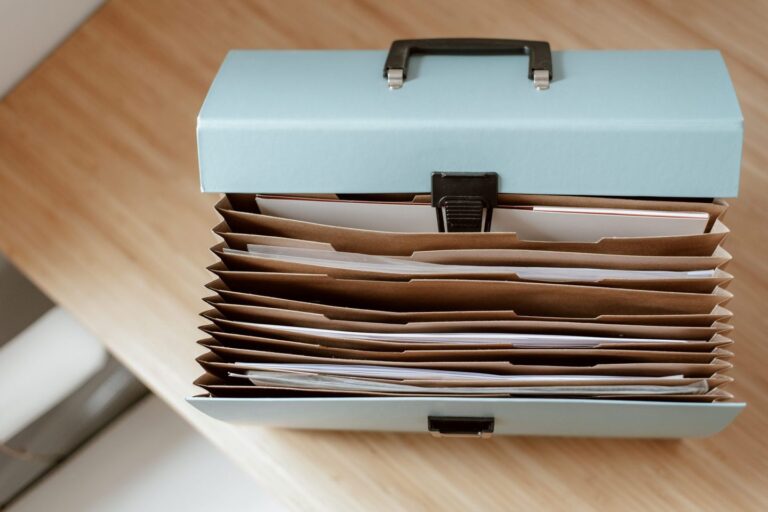
Digital Declutter Checklist for Your Home Office
Shopping links: These links open Amazon search results. They are optional browsing suggestions, not verified product reviews or price/availability checks.
Start with a reversible digital reset
A digital declutter should help you find and use your information without creating data loss or an account problem. Choose one folder, inbox view or device area rather than changing everything at once. This checklist is not a security audit or a promise of faster hardware, better mental health or measured productivity. On a managed work device, follow the organization’s rules and ask its support team before changing software, storage, security settings or business records.
1. Identify the account and protect needed data
Check which account, device and shared location you are working in. Confirm who owns the files and whether you have permission to move or remove them. Before a substantial change, establish a suitable backup and verify that a sample can be opened or restored. Synchronization can propagate deletions and is not automatically an independent backup. Understand recovery limits and any retention requirements before relying on a trash folder, version history or another device.
2. Organize the desktop without a default purge
Start with a small group and distinguish shortcuts from the actual files they point to. Use a clearly named review folder if appropriate, keeping track of where contents came from. Do not delete screenshots, old projects or rarely opened files solely because of age. They may contain records, evidence or source material someone still needs. A tidy-looking desktop does not by itself establish a performance improvement. Leave unfamiliar system and application files alone.

3. Review email by purpose and retention
Use search and labels to identify a manageable category. Archive, label or otherwise organize messages where that preserves needed access, following the service’s behavior and any work policy. Do not assume unread or old mail is junk. Check retention and active tasks before deletion, and inspect the exact scope before applying a bulk rule. For unfamiliar or suspicious messages, avoid clicking an unsubscribe link merely to clear the inbox; use the provider’s appropriate reporting controls.
4. Check cloud ownership before moving files
A move, rename or deletion in shared storage can affect other people, links and automated processes. Check ownership, permissions, current collaborators and dependencies before making the change. Use a small reversible trial where appropriate and confirm the intended result. Do not create an anyone-with-link share as a convenience step for private records. Keep work data in approved locations and review the service’s recovery features without assuming that every action can be undone.

5. Separate app cleanup from subscriptions
Removing an app does not necessarily cancel its subscription, and cancellation does not necessarily preserve access to its data. Review the provider’s current terms, billing account, renewal timing, export options and any loss of features or records. Obtain the account owner’s decision before a cancellation or account closure. On a work device, unused software may support a business process or security requirement. Do not uninstall unfamiliar tools just because their purpose is not obvious.
6. Save active work before closing tabs
A browser tab can contain unsaved work or a live session. Save or export what is needed and check it before closing a group. Bookmarks are useful for pages that will remain accessible, but are not copies of their contents. Clearing cookies, history or cache can affect sign-in state and local information, and is not a universal speed fix. Add a browser extension only after checking its source, permissions, need and any organization policy.

7. Keep passwords and recovery access protected
CISA recommends long, random, unique passwords, a reputable password manager and multifactor authentication where available. Account deletion is a separate decision from organizing saved logins. Check recovery access and service dependencies before changing credentials or closing anything. Do not remove your only working recovery method during a cleanup. Keep passwords and recovery codes out of ordinary notes, shared spreadsheets and casual messages. Follow your organization’s approved authentication process on work accounts.
8. Review photos, notes and projects in small groups
Check ownership, retention and sharing before moving or deleting photos, notes or project files. Similar names or thumbnails do not prove files are duplicates. A shared library or synchronized notes app can carry a deletion to other users or devices. When consolidating, test a small export or transfer for attachments, formatting and completeness before removing a source. Keep uncertain material in a suitable review group rather than treating every old project as disposable.
9. Stop with a verified useful change
Check that a needed file opens, a current task remains visible and the intended users still have access. Record unresolved decisions and arrange a realistic review, not automatic recurring deletion. The retained cable-box, desk-tray and monitor-stand searches are optional categories, not tested digital-cleanup tools. Follow equipment ventilation and loading instructions and choose a suitable screen position if using them. No new organizer, extension or subscription is required to finish this small reset.